
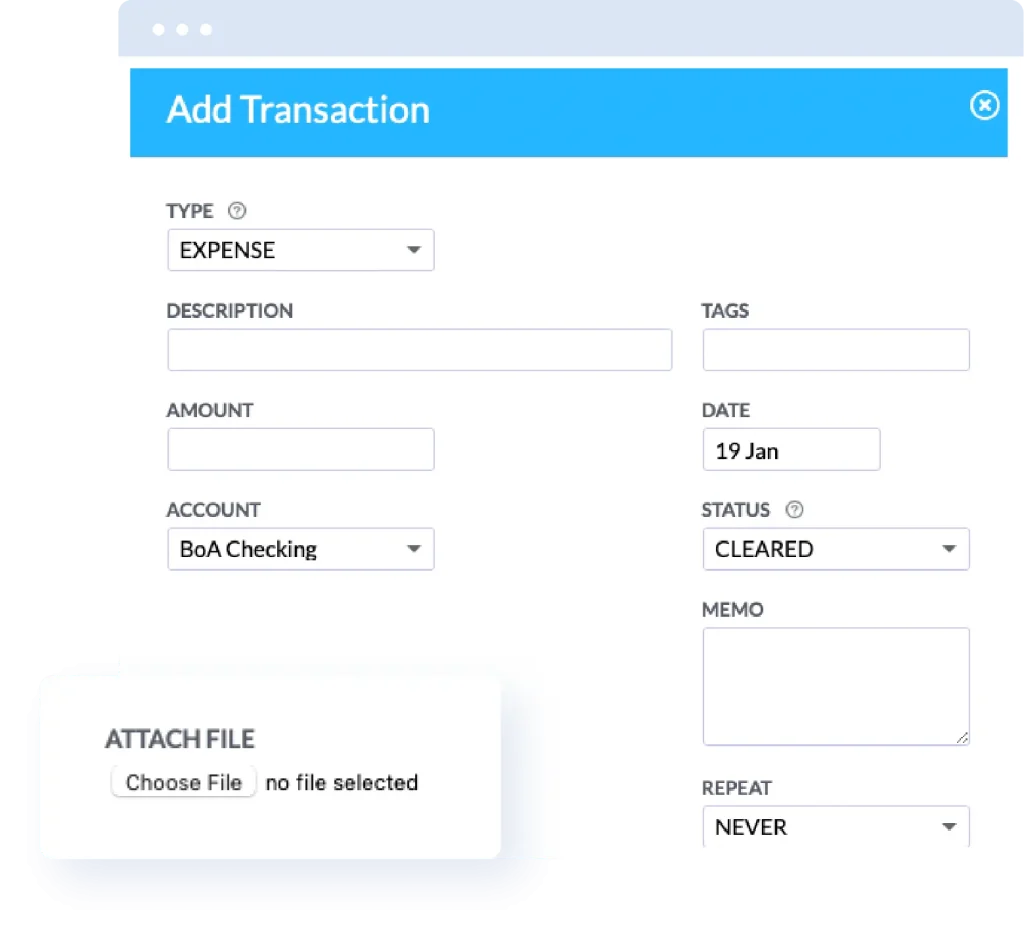
In addition to automatic sync, Buxfer supports manually uploading data from your bank. You may want to do so if your bank is not supported for sync, or if you’d rather not enter your banking password on a service you don’t trust yet.

You can bulk upload historical data you may have in a different financial software such as Quicken, MS Money, Mint.com, YNAB, Personal Capital among others.
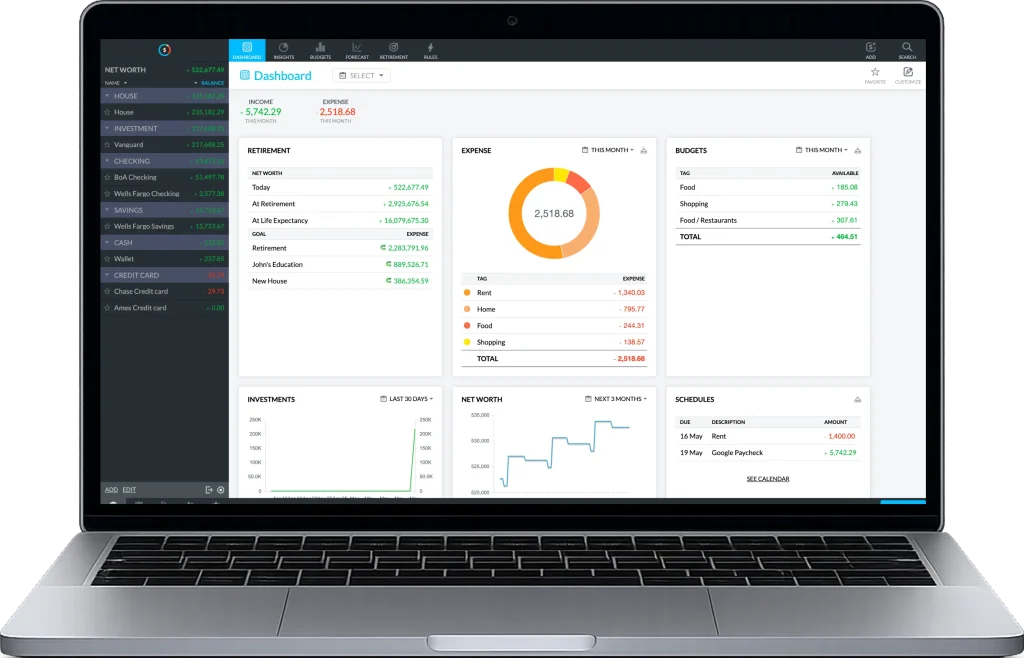
Buxfer open on a laptop

Download a statement from your bank in a supported format: Excel, OFX, QFX, QIF.

Upload the statement to Buxfer. You may be asked to provide more information (e.g., date format).

Buxfer can remind you when your next statement is due.

To download your statement from your bank’s website, follow these steps:

  • Login to the online banking website for your financial institution.
  • Search for a link named ‘Download’ or ‘Export’.
  • Select the desired time period.”
  • Select one of these formats: Quicken, MS Money, Quickbooks, OFX, QIF, QFX, IIF, Excel, CSV

(Note that exact steps may vary depending on the online banking interface your bank provides.)

The following file formats are supported for upload:

  • YNAB data file (.csv)
  • Quicken (.ofx, .qfx, .qif)
  • Microsoft Money (.ofx)
  • Quickbooks (.iif)
  • Excel (.xls, .xlsx, .csv)
  • Mint.com data file (.csv)
  • Personal Capital data file (.csv)

For OFX/QFX files, we store the following fields:

  • TRNTYPE – transaction type
  • DTPOSTED – date on which transaction was posted
  • DTUSER – date on which transaction was initiated
  • TRNAMT – amount of the transaction
  • NAME – description
  • MEMO – additional description
  • CURDEF – currency

For QIF files, we store the following fields:

  • D – date on which transaction was posted
  • T – transaction amount
  • N – check number
  • P – description
  • M – memo (additional description)
NAMED BEST OF THE FOR PIONEERING WEB BUXFER