
Tracking your money gets easier when every account lives in one view. Connect your bank or credit card to Buxfer and your transactions and balances download automatically, giving you a clear picture of your finances across every account you own. 
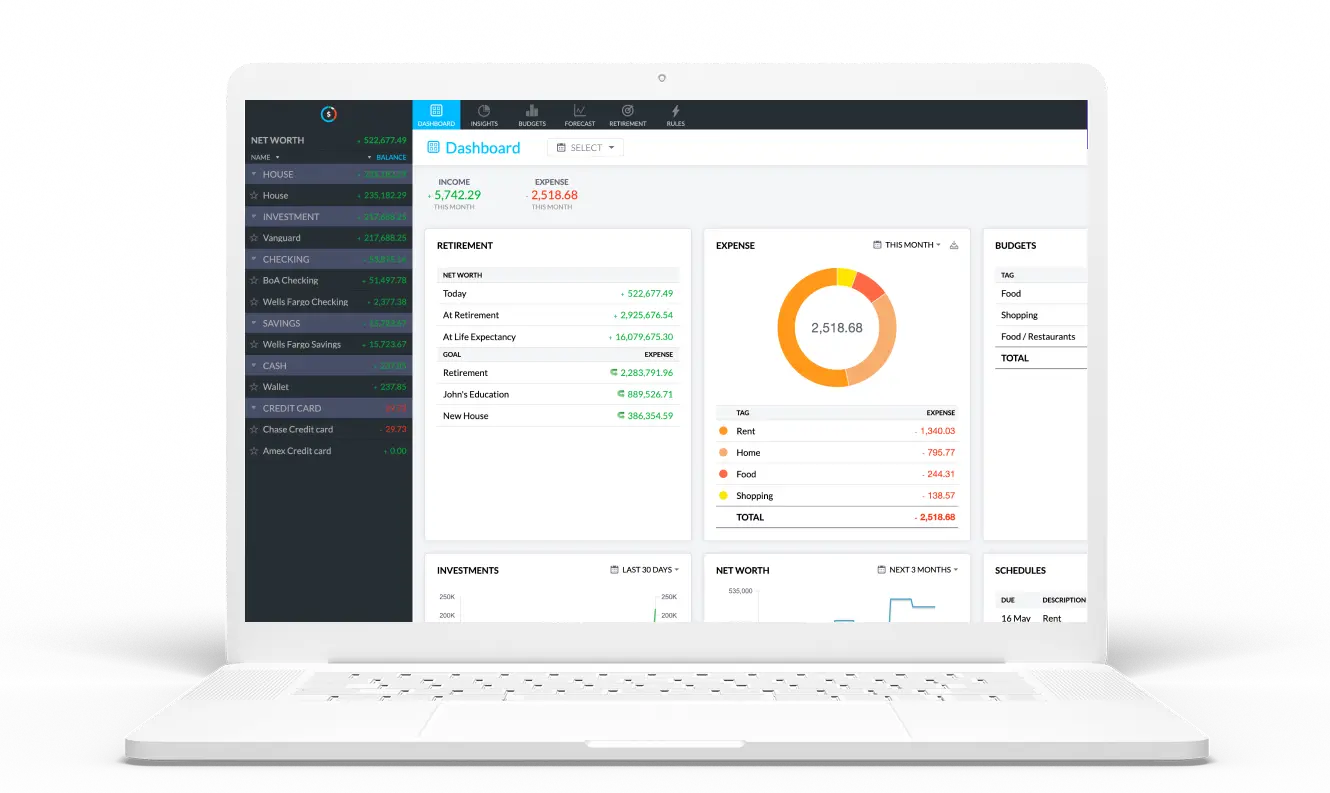
Buxfer opn on a laptop

Search for your bank, then enter your online banking login information.

Using high-grade security, Buxfer will connect to your bank and automatically fetch your accounts, balances and transactions.

New transactions will be synced automatically, and account balances will be kept automatically up to date.

NAMED BEST OF THE FOR PIONEERING WEB BUXFER

The bank’s login information you share is not stored in our database but is instead stored by our sync providers: Yodlee and SaltEdge. Once sent to the provider, we no longer have any access to your login information.

All our sync providers have decades of experience handling sensitive customer information. They even power payments and online banking interfaces for many banks.

Learn more about your sync providers: Yodlee and SaltEdge.

Yes, Buxfer is designed to work even if you can’t or don’t want to sync your bank accounts.

You can use one of these methods to enter your transactions:

  • Upload statements: Download statements from your online banking website and upload them to Buxfer. Read more here.
  • Manually enter transactions: Manually enter transactions one at a time. While more tedious, this is also more flexible and allows you to enter future-dated transactions, itemize transactions, etc.

To set up an account for automatic sync, please follow these steps:

  • Enter the login information for your bank account and click “Sync”.
  • Click Add > Account.
  • Start typing in the name of your bank. Banks supported for sync will be suggested. Please select the one that matches your bank name, then click “Add Account”.

For most banks, we automatically sync accounts approximately once a day, whether or not you log in to your account. Each account has a different frequency depending on factors like how often it has new transactions.

For some banks, we are unable to sync accounts automatically. This can happen if the bank requires answers to security questions or has restricted access to your account, among other reasons.

To force your accounts to update, follow these steps:

  • Click “Sync”.
  • Click “Accounts” in the top navigation bar.

In general, sync will try not to create duplicates. In cases when it does, most often it is due to the poor quality of data provided by banks. Despite us being in the twenty-first century, these people haven’t yet figured out how to exchange data in a well-structured format.

If you see duplicates, simply delete them, and they will not be synced back to your account.

To update the banking login information for an account, please follow these steps:

  • Click “Update Login” and follow the subsequent instructions.
  • Navigate to the page for the account.
  • Click “Edit” to the right of the account name.

No, in general, sync will not create duplicates. Sync is smart enough to detect duplicates and automatically merge them, so you don’t need to worry about it.

A synced transaction is considered a duplicate if all of the following conditions are met:

  • Amount exactly matches a previously entered transaction.
  • Description is similar to the previously entered transaction. Similarity is calculated as the percentage of words that are common to both transactions.
  • Date is within 5 days of the previously entered transaction.

If you enter transactions manually in a “pending” state. Upon syncing, they will be automatically marked as “Reconciled”.

Yes, you can add your house or other real estate properties you own. You can manage its value manually or use our sync feature to have it be automatically synced with Redfin’s estimate.

Learn more about Redfin estimates.

Often times, banks provide transaction descriptions that are all caps and look extremely ugly. Buxfer can automatically make them look a little prettier, if you want it to.

For certain synced transactions, we can identify merchant information and use that to make the description look nicer. E.g., we might prettify a description of the form “ADTSECURITY MYADT.COM” to “ADT Security Services”.

For transactions where we are unable to identify merchant information, we convert them into camel case, i.e., all words start with a capital letter followed by lowercase letters.

ORIGINAL DESCRIPTIONPRETTY DESCRIPTION
COSTCO WHOLESALE 98728Costco Wholesale 98728
DOORDASH*CHEESECAKE FACTORYDoordash*cheesecake Factory

To enable this feature, please visit Settings > Sync.

To disable sync using our desktop website, please follow these steps:

  • Navigate to the page for the account.
  • Click “Edit” to the right of the account name.
  • Click “Disable Sync” and follow the subsequent instructions.

We do not support this functionality on our mobile interfaces yet.